
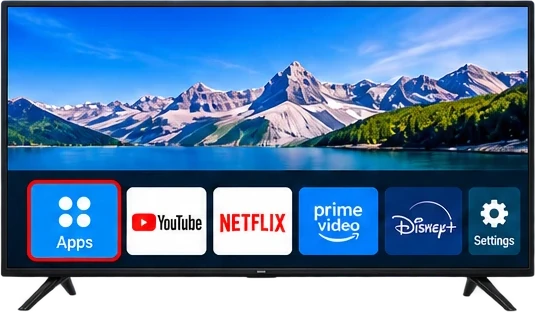
Smart TV Setup Guide
Follow these simple steps to install IBO Player Pro on your Smart TV and activate the app to start watching your IPTV channels, movies and series.
-
Step 1: Open Your Smart TV App Store
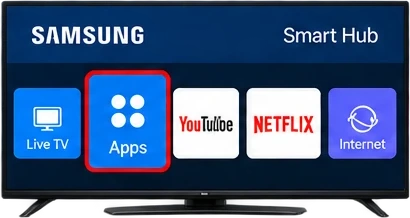
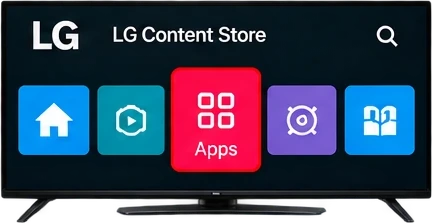
From your Smart TV home screen, open the app store. The name may be different depending on your TV brand (Samsung – Apps, LG – LG Content Store, etc.).
-
Step 2: Search for IBO Player Pro
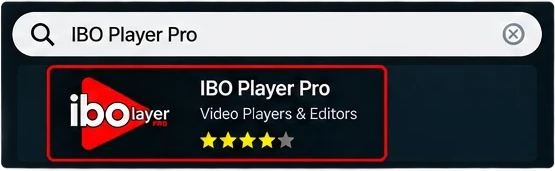
In the app store, use the search icon and type “IBO Player Pro”. Select the official app from the results.
-
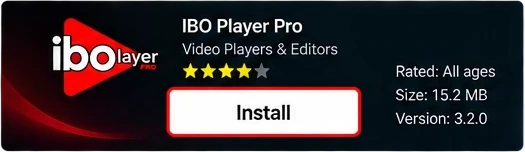
Step 3: Install IBO Player Pro
Click on the IBO Player Pro app and then press Install. Wait for the installation to finish.
-
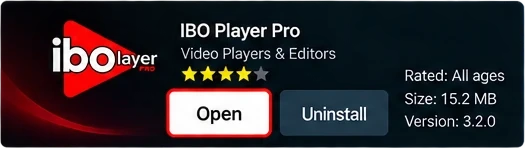
Step 4: Open IBO Player Pro
After installation, click Open to launch IBO Player Pro.
-
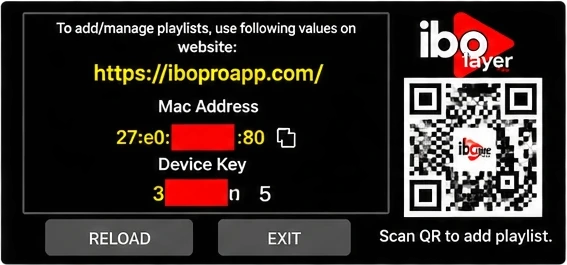
Step 5: Get Your MAC Address
When you open the app for the first time, you will see your MAC Address on the screen. Note it down, as you need it to activate your device on the IBO Player website.
-
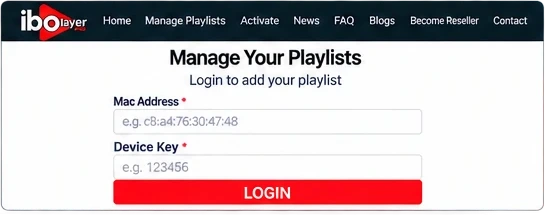
Step 6: Activate Your Device
Go to the official IBO Player website https://iboproapp.com on your phone or computer, enter your MAC Address and Device Key, and activate your device.
-
Step 7: Start Watching
Once your device is activated, restart the IBO Player Pro app on your Smart TV. Your channels, movies and series will now be available.
